Version 1.108 is now available! Read about the new features and fixes from December.
Dismiss this update
Visual Studio Code extensions enhance productivity but require careful management in enterprise environments to maintain security and compliance. This article covers how IT admins can control extension installation, host a private marketplace, and deploy extensions to users' machines.
Support for allowed extensions is available starting from VS Code version 1.96.
VS Code supports controlling which extension can be installed on users' machines through the extensions.allowedORG application-wide setting. You can selectively allow extensions by publisher, specific extension, version, and platform.
If the setting is not configured, all extensions are allowed. If the setting is configured, all extensions that are not listed are blocked from installing. If you block an extension or version that is already installed, the extension is disabled.
Organizations can centrally manage allowed extensions by using the AllowedExtensions policy. Through device management solutions, admins can then deploy and enforce the policy across all managed devices. This overrides any user-configured extensions.allowedORG setting on individual devices.
For example, to only allow extensions from the github and microsoft publishers, set the following JSON value for the AllowedExtensions policy:
{
  "github": true,
  "microsoft": true
}
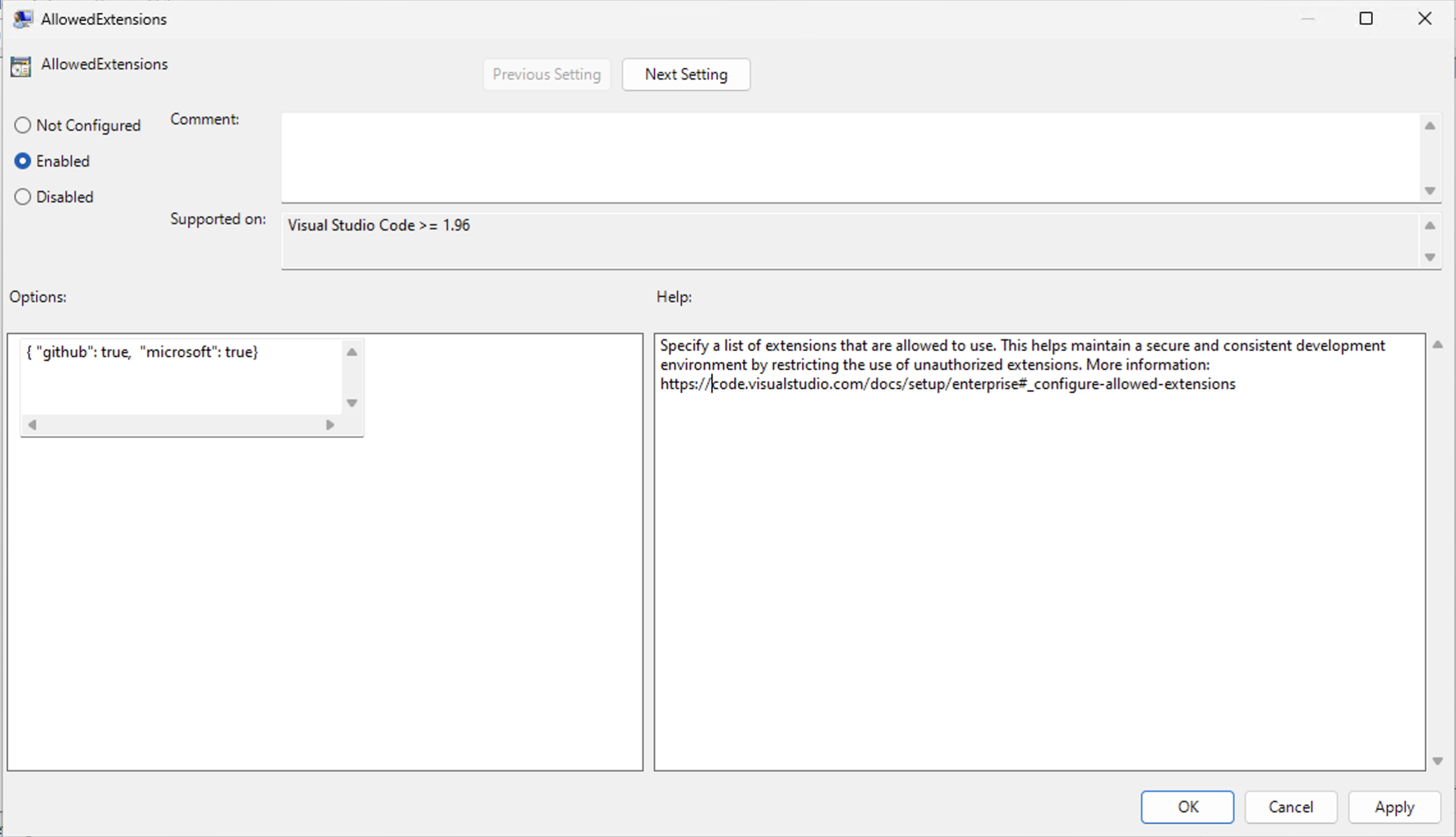
If there's a syntax error in the policy value, the extensions.allowed setting is not applied. You can check the Window log in VS Code for errors (press ⇧⌘P (Windows, Linux Ctrl+Shift+P) and enter Show Window Log).
The extensions.allowed setting contains a list of extension selectors that determine which extensions are allowed or blocked. You can specify the following types of extension selectors:
The following JSON snippet shows examples of the different settings(extensions.allowed) setting values:
"extensions.allowed": {
    // Allow all extensions from the 'microsoft' publisher. If the key does not have a '.', it means it is a publisher ID.
    "microsoft": true,

    // Allow all extensions from the 'github' publisher
    "github": true,

    // Allow prettier extension
    "esbenp.prettier-vscode": true,

    // Do not allow container tools extension
    "ms-azuretools.vscode-containers": false,

    // Allow only version 3.0.0 of the eslint extension
    "dbaeumer.vscode-eslint": ["3.0.0"],

    // Allow multiple versions of the figma extension
    "figma.figma-vscode-extension": ["3.0.0", "4.2.3", "4.1.2"],

    // Allow version 5.0.0 of the rust extension on Windows and macOS
    "rust-lang.rust-analyzer": ["5.0.0@win32-x64", "5.0.0@darwin-x64"],

    // Allow only stable versions of the GitHub Pull Requests extension
    "github.vscode-pull-request-github": "stable",

    // Allow only stable versions from redhat publisher
    "redhat": "stable",
}
Specify publishers by their publisher ID. If a key does not have a period (.), it is considered a publisher ID. If a key has a period, it is considered an extension ID. The use of wildcards is currently not supported.
You can use microsoft as the publisher ID to refer to all extensions published by Microsoft, even though they might have different publisher IDs.
Version ranges are not supported. If you want to allow multiple versions of an extension, you must specify each version individually. To further restrict versions by platform, use the @ symbol to specify the platform. For example, "rust-lang.rust-analyzer": ["5.0.0@win32-x64", "5.0.0@darwin-x64"].
The more specific the selector, the higher the precedence. For example, "microsoft": true and "microsoft.cplusplus": false allows all Microsoft extensions, except for the C++ extension.
Duplicate key values are not supported. For example, including both "microsoft": true and "microsoft": false results in an invalid policy.
You can set up VS Code with a set of preinstalled extensions (bootstrap). This functionality is useful in cases where you prepare a machine image, virtual machine, or cloud workstation where VS Code is preinstalled and specific extensions are immediately available for users.
Support for preinstalling extensions is currently only available on Windows.
Follow these steps to bootstrap extensions:
Create a folder bootstrap\extensions in the VS Code installation directory.
Download the VSIX files for the extensions that you want to preinstall and place them in the bootstrap\extensions folder.
When a user launches VS Code for the first time, all extensions in the bootstrap\extensions folder are installed silently in the background.
Users can still uninstall extensions that were preinstalled. Restarting VS Code after uninstalling an extension will not reinstall the extension.
The private marketplace enables enterprises to self-host and distribute extensions within their organization to meet organizational security and compliance requirements. The private marketplace integrates with the VS Code extensions experience, giving users easy discovery and automatic updates of private extensions.
Connecting from VS Code Server or VS Code for the Web is not supported.
Private marketplace is currently available to GitHub Enterprise customers. VS Code users must sign in with a GitHub Enterprise or Copilot Enterprise/Business account to access the private marketplace.
Refer to the deployment and feature guide for deployment instructions, scripts, and development environment configuration. If you have questions or need assistance, contact private marketplace support.