Version 1.107 is now available! Read about the new features and fixes from November.
Dismiss this update
In this guide you will learn how to:
Dockerfile file for an Express Node.js service containerCreate a folder for the project.
Open a development command prompt in the project folder and create the project:
npx express-generator
npm install
Open the project folder in VS Code.
Open the Command Palette (⇧⌘P (Windows, Linux Ctrl+Shift+P)) and use Containers: Add Docker Files to Workspace... command:
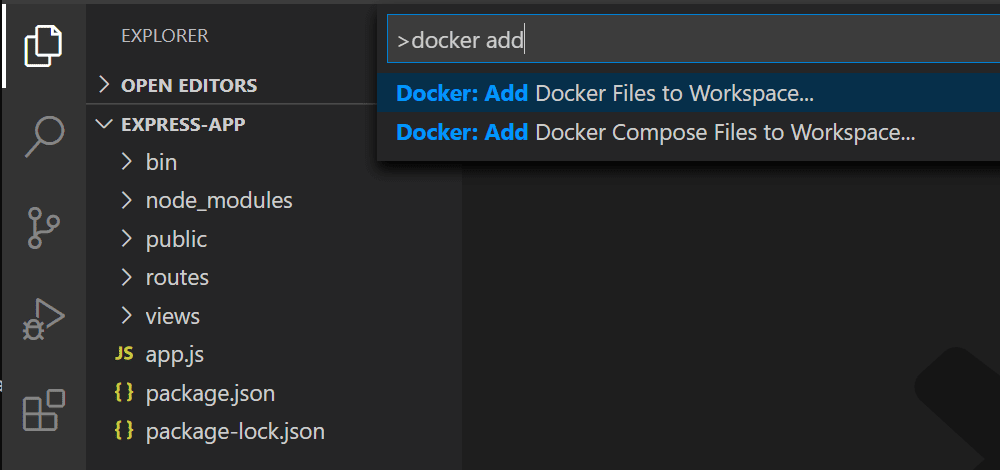
Select Node.js when prompted for the application platform.
Choose the default package.json file.
Enter 3000 when prompted for the application port.
Select either Yes or No when prompted to include Docker Compose files. Compose is typically used when running multiple containers at once.
The extension creates Dockerfile and .dockerignore files. If you elected to include Docker Compose files, docker-compose.yml and docker-compose.debug.yml will be generated as well. Finally, the extension will create a set of VS Code tasks in .vscode/tasks.json for building and running the container (in both debug- and release-configurations) and a launch debug configuration in .vscode/launch.json for debugging the service within the container.
The Container Tools extension helps you author Dockerfiles by using IntelliSense to provide auto-completions and contextual help. To see this feature in action, add an environment variable to your service image by following these steps:
Open the Dockerfile file.
Use ENV instruction to add an environment variable to the service container image.
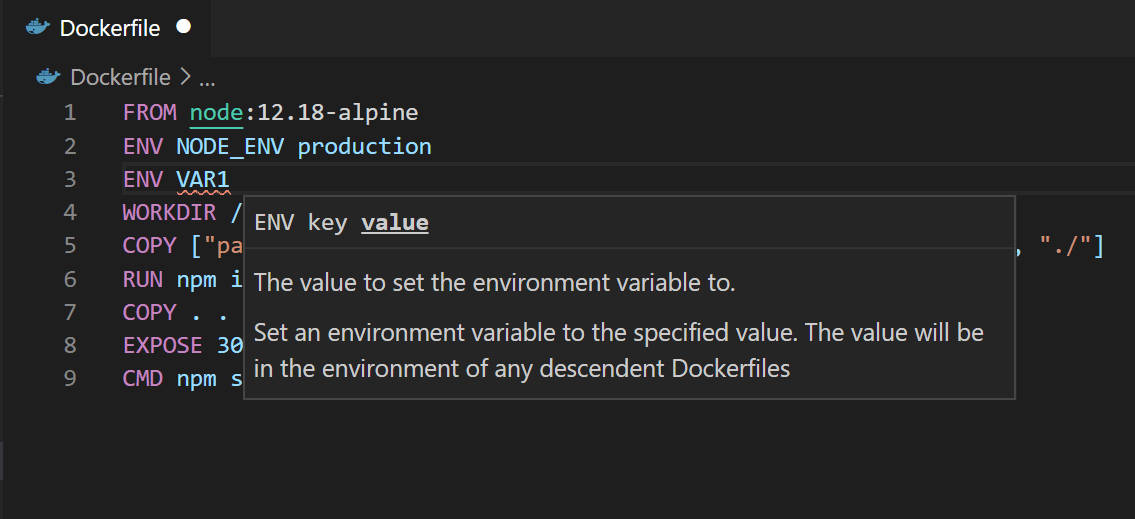
Note how the Container Tools extension lists all available Dockerfile instructions and describes the syntax.
The Container Tools extension uses the
basestage of theDockerfileto create a debug version of the container image for your service. Put the environment variable definition in thebasestage to have this variable available in both debug and release versions of the container image.
Save the Dockerfile file.
Open a terminal (⌃` (Windows, Linux Ctrl+`)).
Enter npm run start to start the application:
> express-app@0.0.0 start /Users/user/code/scratch/express-app
> node ./bin/www
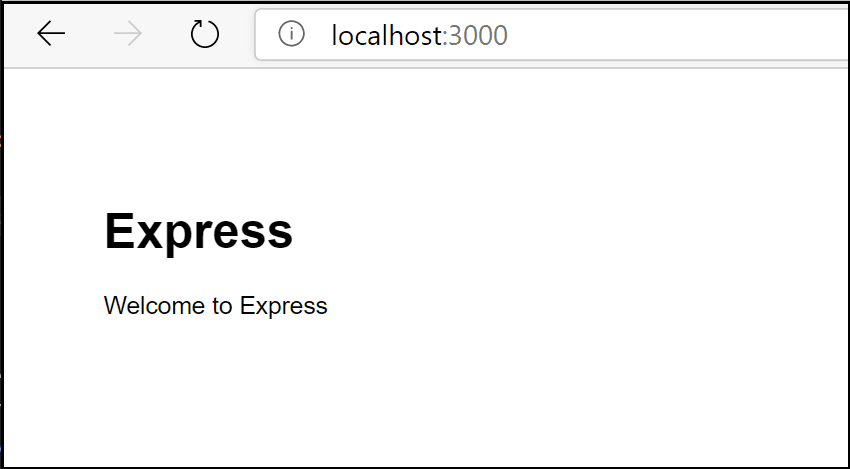
Open the web browser and navigate to http://localhost:3000. You should see a page similar to the following:
When done testing, type Ctrl+C in the terminal.
Open the Command Palette (⇧⌘P (Windows, Linux Ctrl+Shift+P)) and select the Container Images: Build Image... command.
Open the Container Explorer and verify that the new image is visible in the Images view:
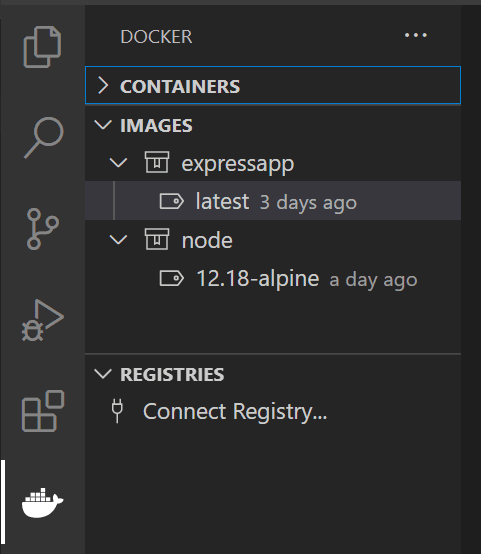
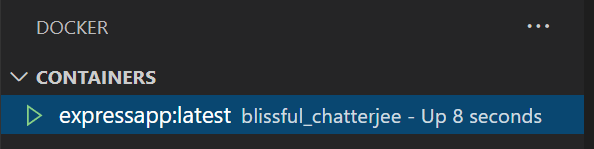
Right-click on the image built in the previous section and select Run or Run Interactive. The container should start and you should be able to see it in the Containers view:
Open the web browser and navigate to http://localhost:3000. You should see a page similar to the following:
When done testing, right-click the container in the Containers view and select Stop.
When the Container Tools extension adds files to the application, it also adds a VS Code debugger configuration in .vscode/launch.json for debugging the service when running inside a container. The extension detects the protocol and port used by the service and points the browser to the service.
Set a breakpoint in the get() handler for the '/' route in routes/index.js.
Make sure the Containers: Node.js Launch debugger configuration is selected.
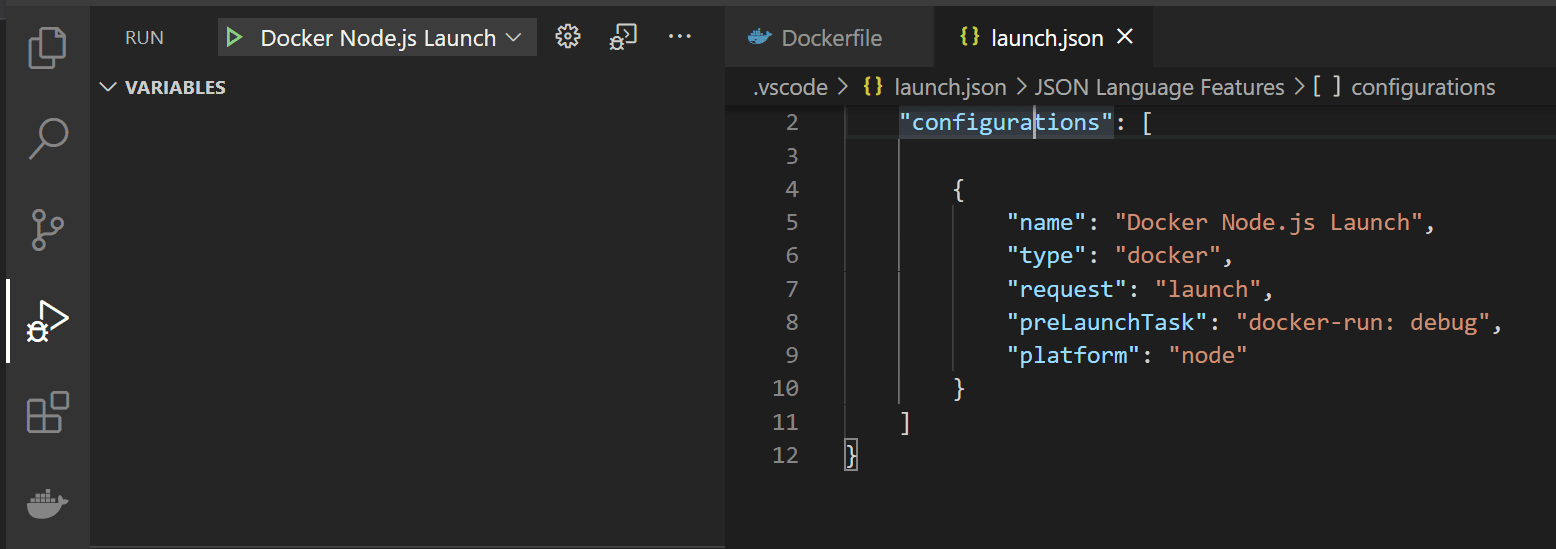
Start debugging (use the F5 key).
index.js.Note that, because the debugger attaches after the application starts, the breakpoint may be missed the first time around; you might have to refresh the browser to see the debugger break on the second try.
You can configure the application to wait for the debugger to attach before starting execution by setting the inspectMode property to
breakin thedocker-run: debugtask intasks.jsonunder thenodeobject.
You can view the logs in VS Code by using the View Logs command on the container:
Navigate to the Container Explorer.
In the Containers view, right-click on your container and choose View Logs.
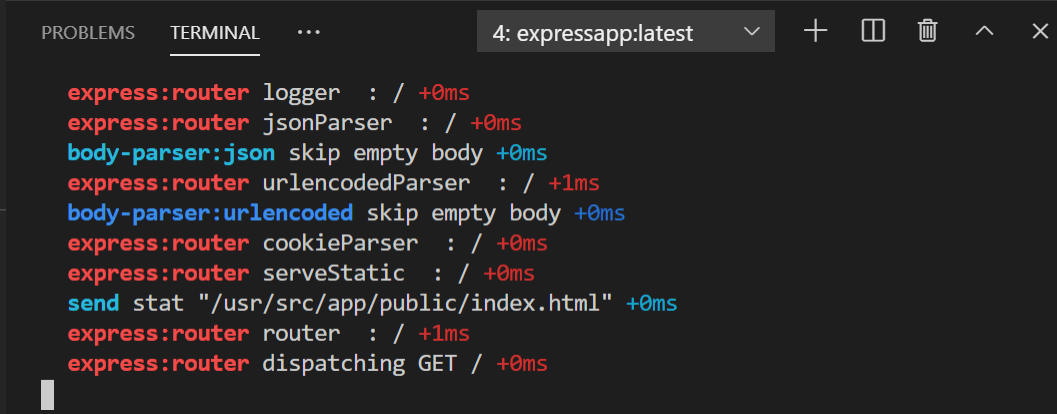
The output will be displayed in the terminal.
You're done! Now that your container is ready, you may want to: